


Desktop
Desktop
One OS desktop for every Digital Crew app: Sales OS, Crew OS, HR OS, Marketing OS and Research OS share its wallpaper, glass, windows, menus and widgets.
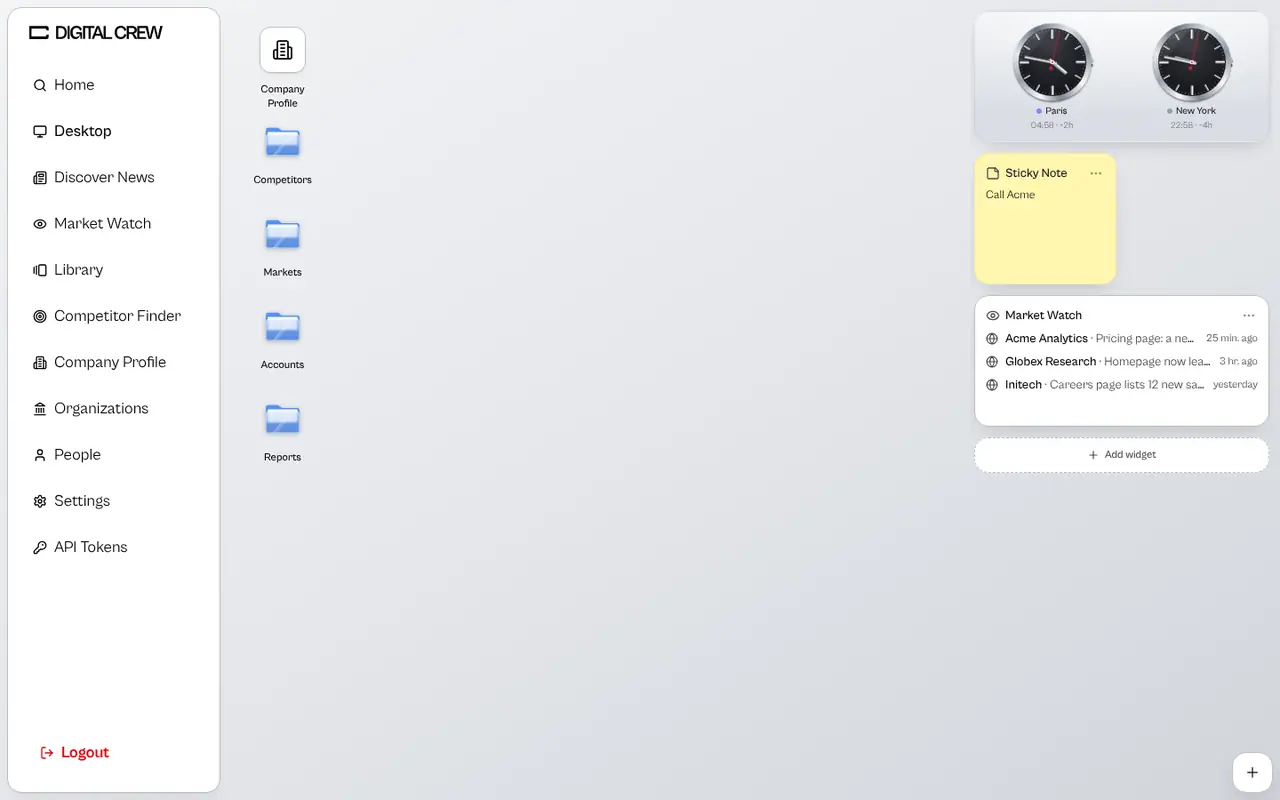
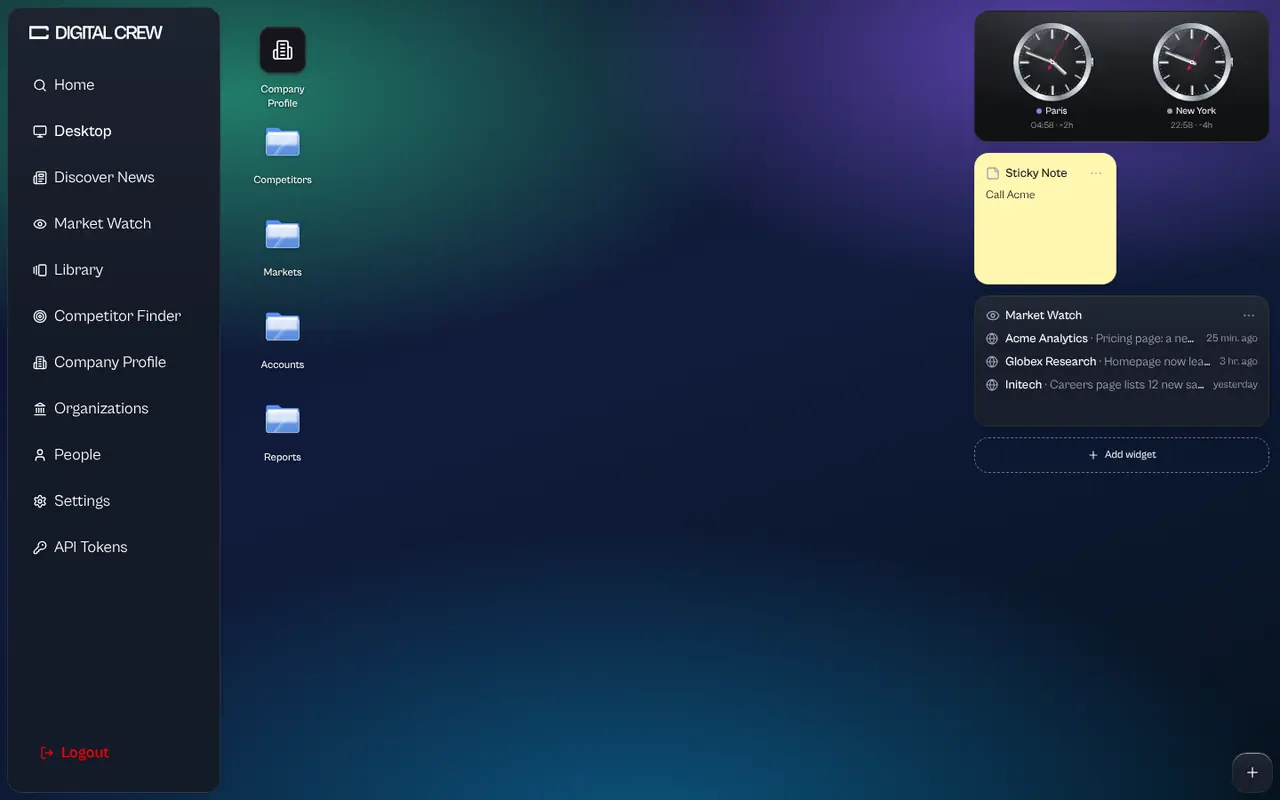
Every Digital Crew app runs on the same desktop. The app's sidebar stays where it is and becomes the system's bar. The page the router shows becomes the main window: close it and the member's own desktop is behind it, with their folders, shortcuts, sticky notes and the day's widgets. Any page can also open in a floating window of its own, so several sit side by side. It is a different arrangement of the same app, not a second one: every record on the desktop comes from the same API, permissions and grants as the page it links to.
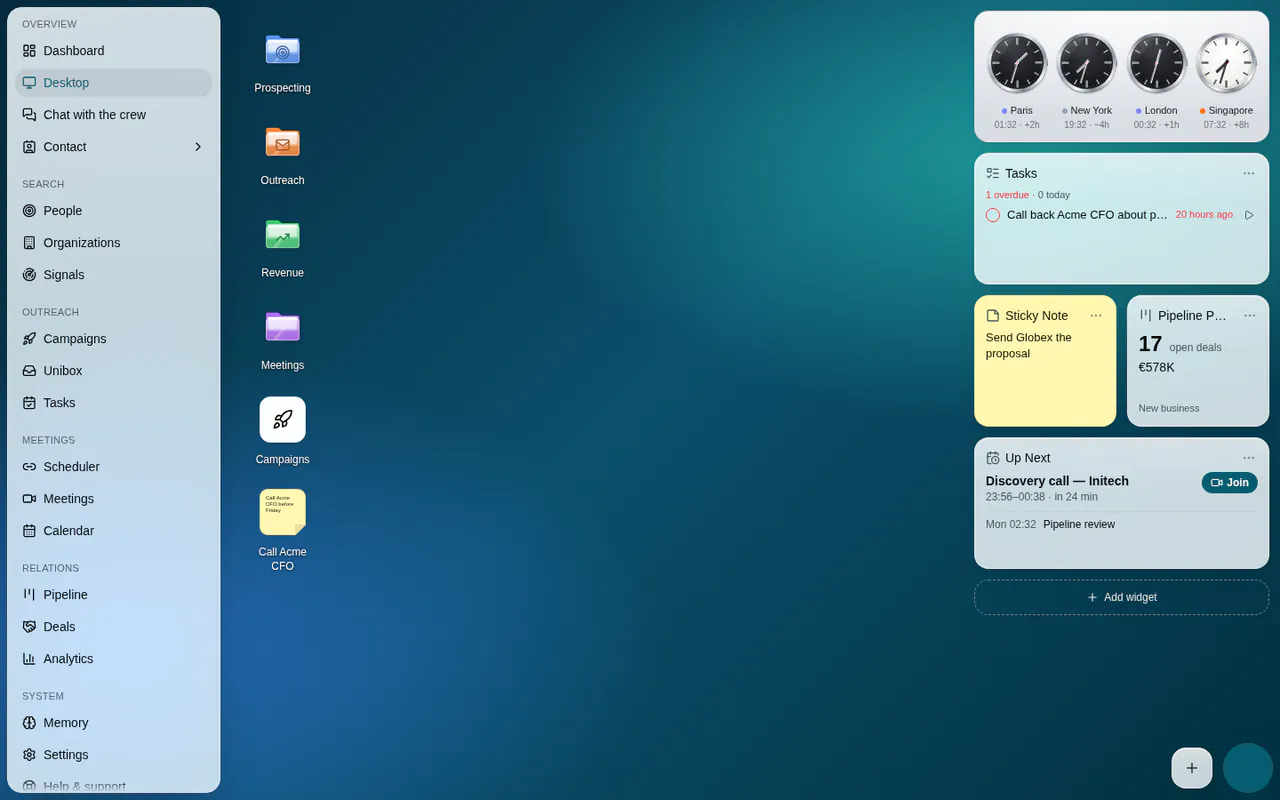
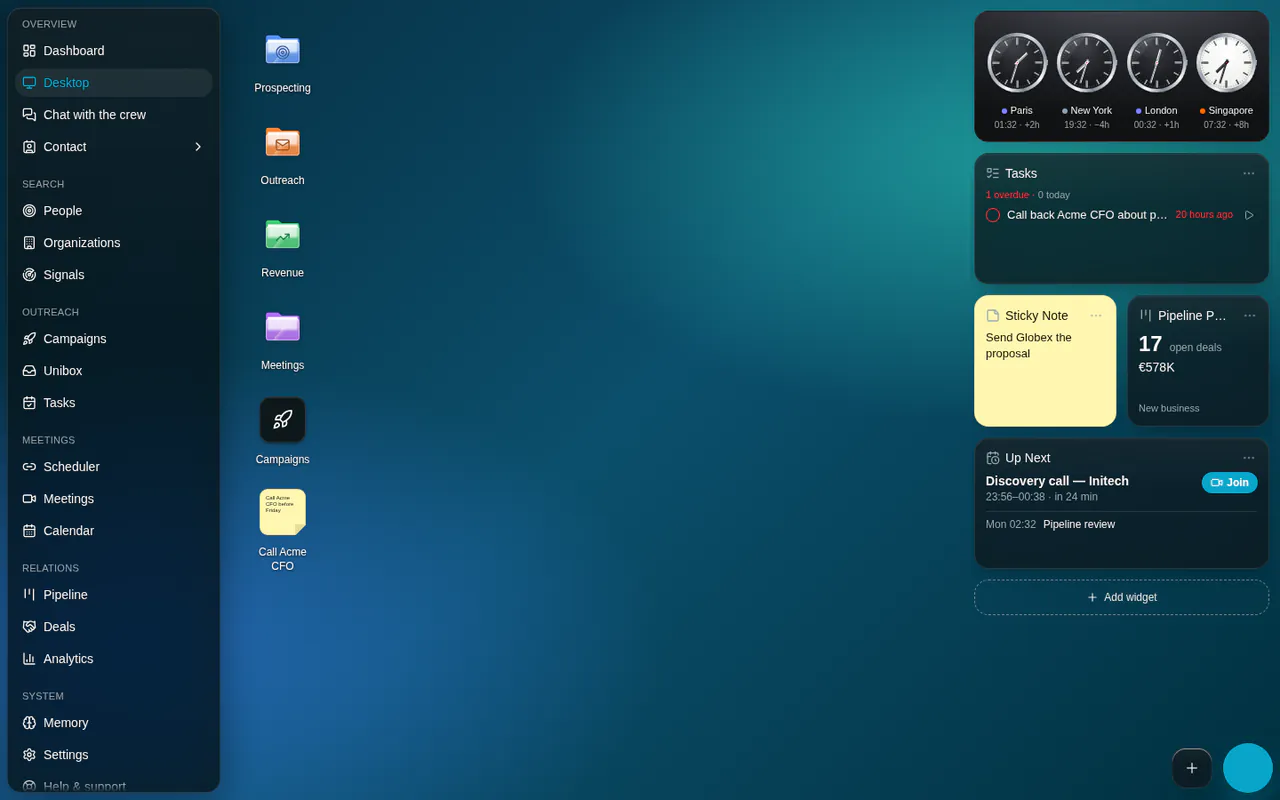
Max's desktop, Sales OS, is the reference. The shared kit, @digitalcrew/desktop in digitalcrew-orchestrator/packages/desktop, is extracted from it, and the four other OSes run that kit, so all five look, move and behave the same. Only the name, the accent, the sidebar's pages, the app's own widgets and its interface font change.
The five OSes#
| OS | App | Agent | Accent | Token |
|---|---|---|---|---|
| Sales OS | Max | Max, Outbound Sales Force | Amber #F59E0B |
dc-max |
| Crew OS | The hub (digitalcrew.tech) | The whole crew | Ink, monochrome | foreground |
| HR OS | Sophie | Sophie, HR Business Partner | Sky #0EA5E9 |
dc-sophie |
| Marketing OS | Kate | Kate, Marketing Maestro | Green #10B981 |
dc-kate |
| Research OS | Claire | Claire, Market Mastermind | Violet #8B5CF6 |
dc-claire |
- One agent, one colour. Each OS takes its agent's
--dc-<agent>token as its accent (see Colour). Crew OS is the hub of the whole crew, so it stays ink, like the brand: no agent hue. - The accent names the OS; it does not paint the chrome. Chrome is glass toned by the wallpaper, and the theme colour is the member's own or, with Match wallpaper, the wallpaper's (see Wallpaper & glass). Sales OS keeps Max's orange
primaryfor its controls; amber is Max the agent's colour. - One kit, one behaviour. Every size, timing, menu, shortcut and setting on these pages holds in all five.
Each OS#
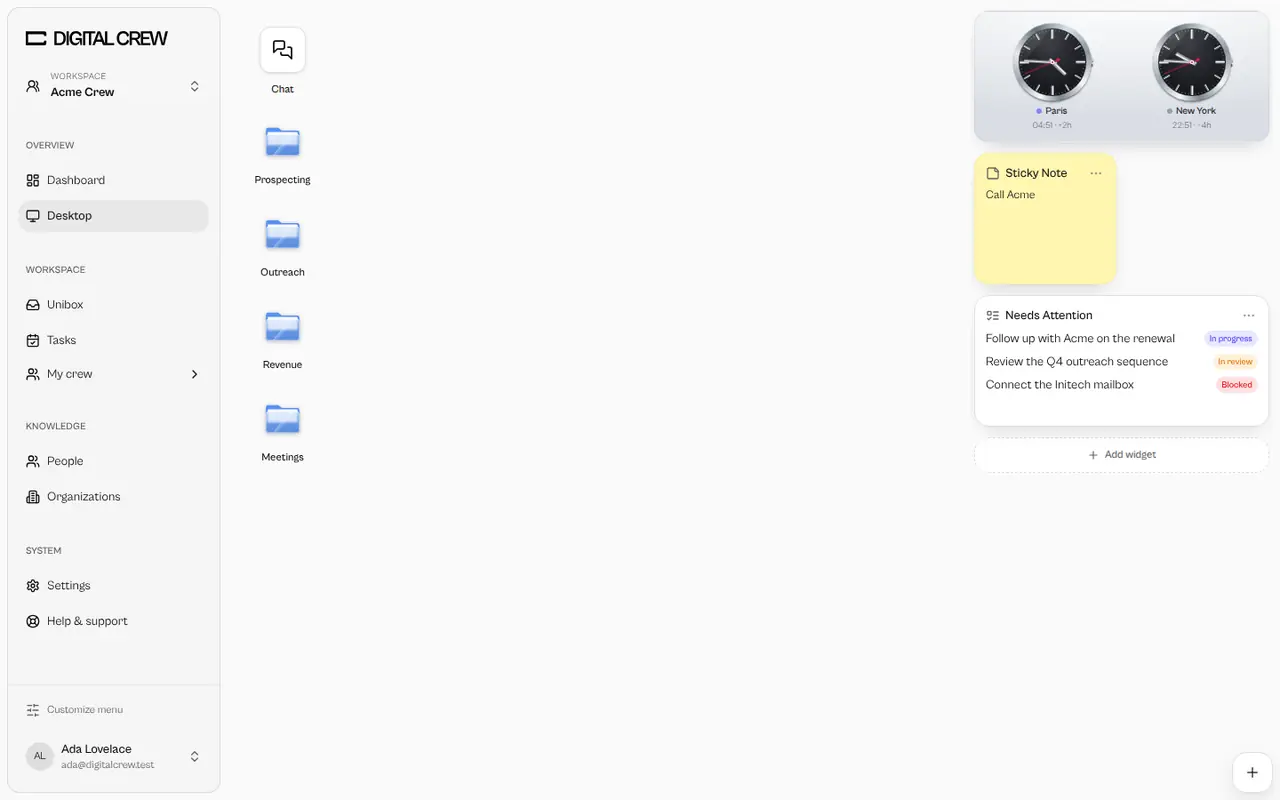
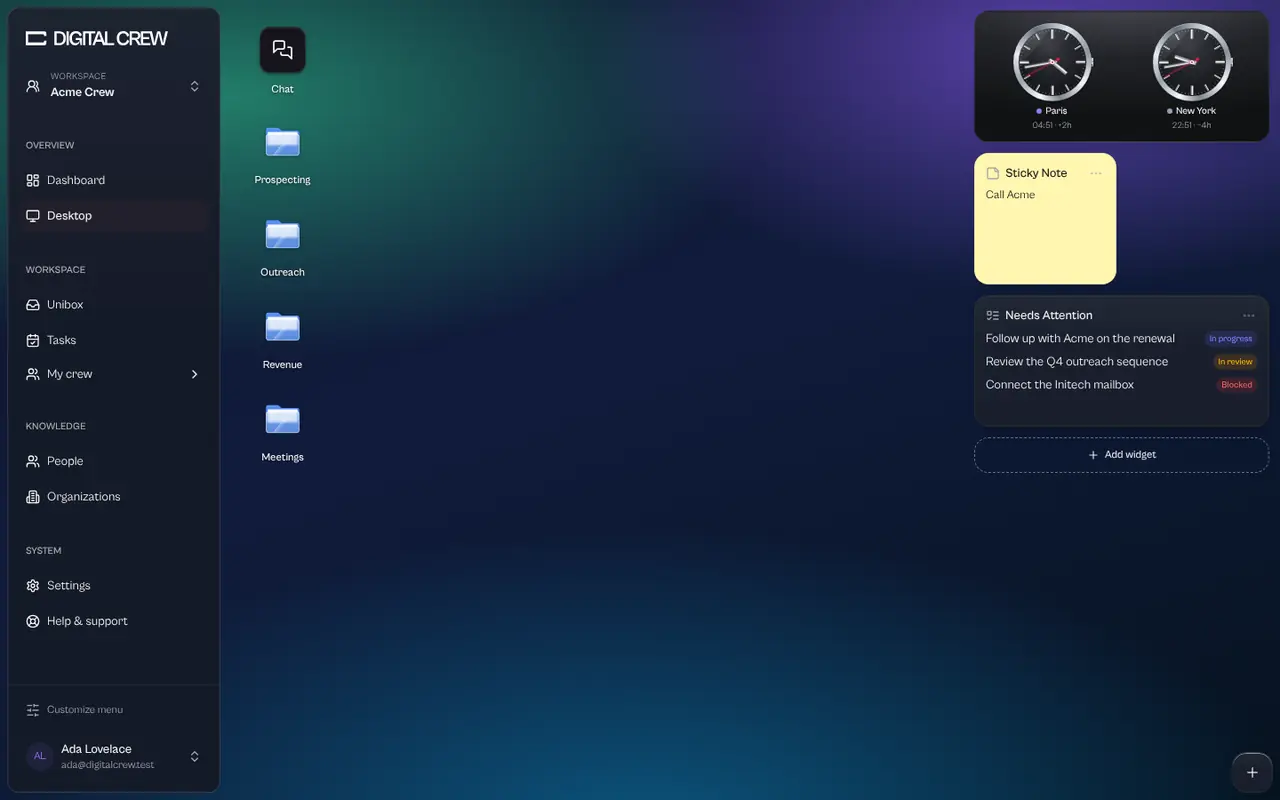
The same desktop in each app, seeded with the same folders: each keeps its own sidebar, pages, widgets, interface font and default ground (in light), and all take the same wallpapers (Aurora, in dark). Max's Sales OS is pictured throughout this section.
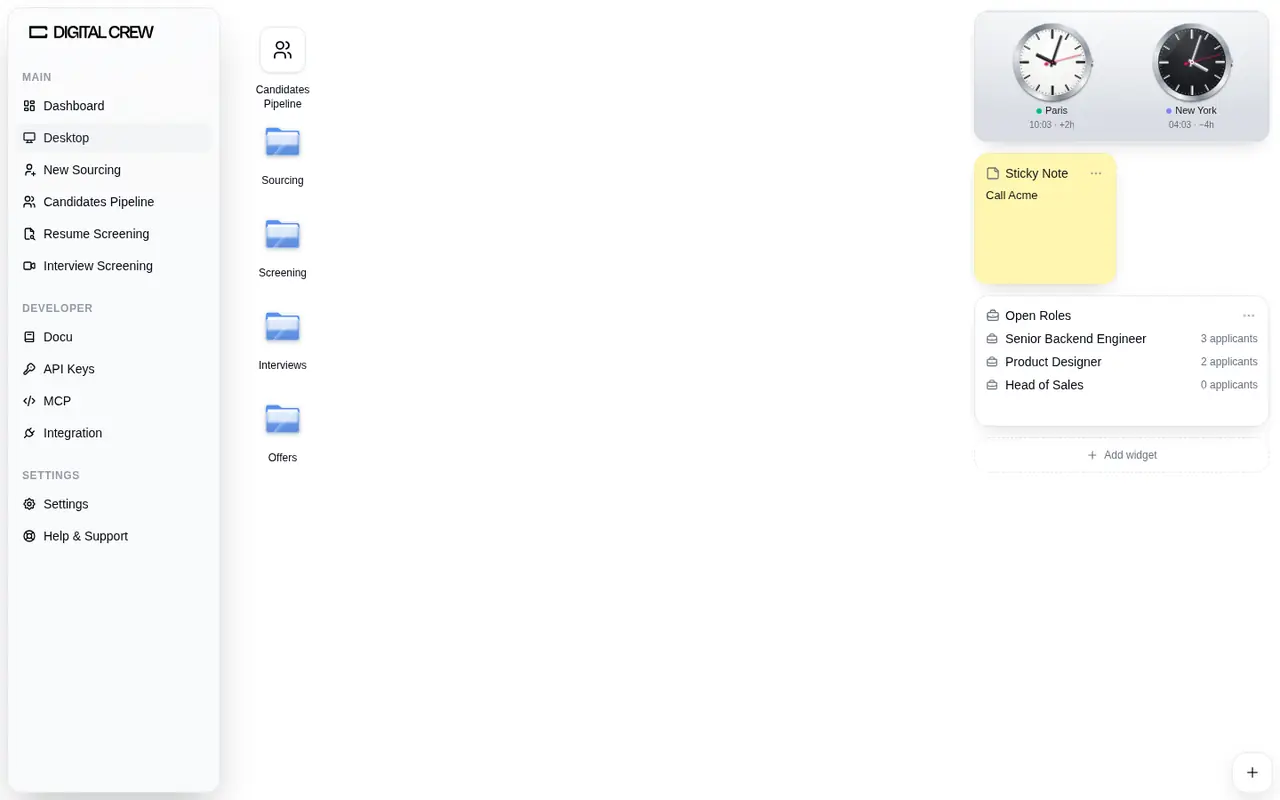
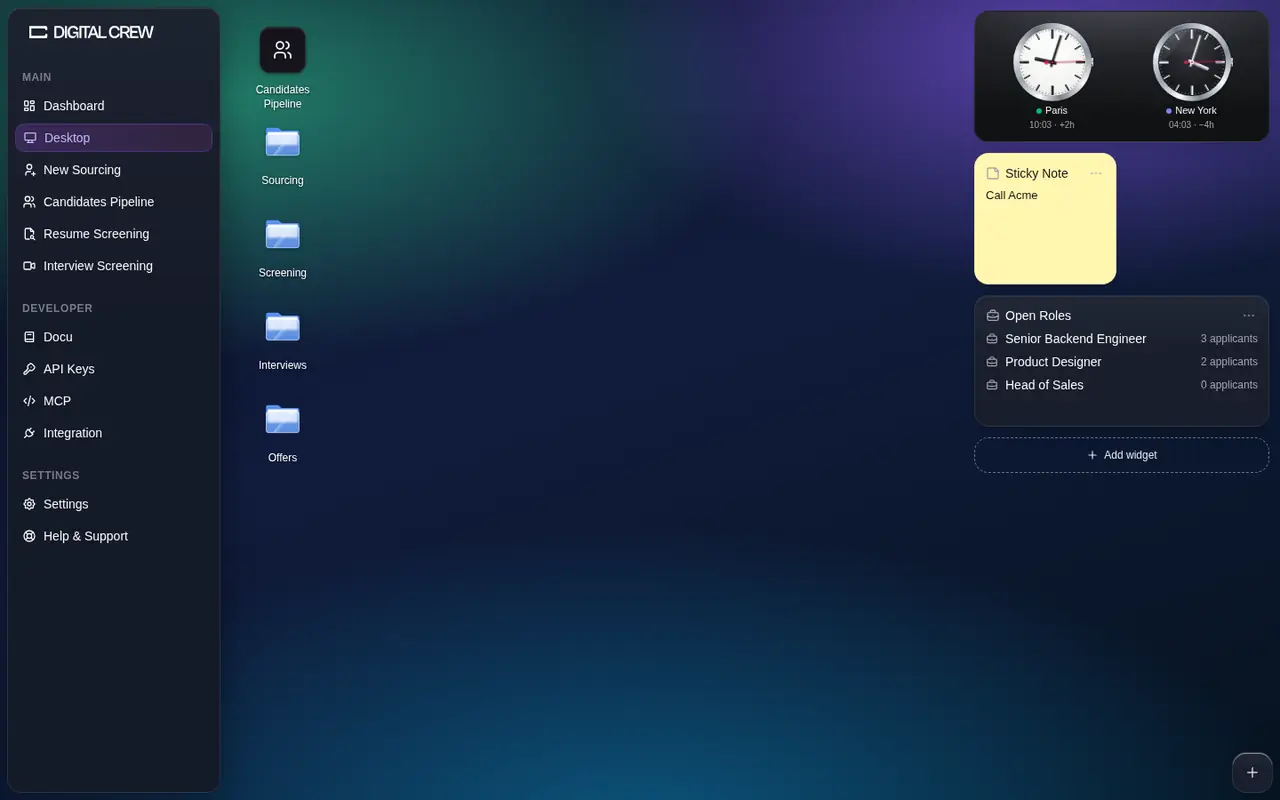
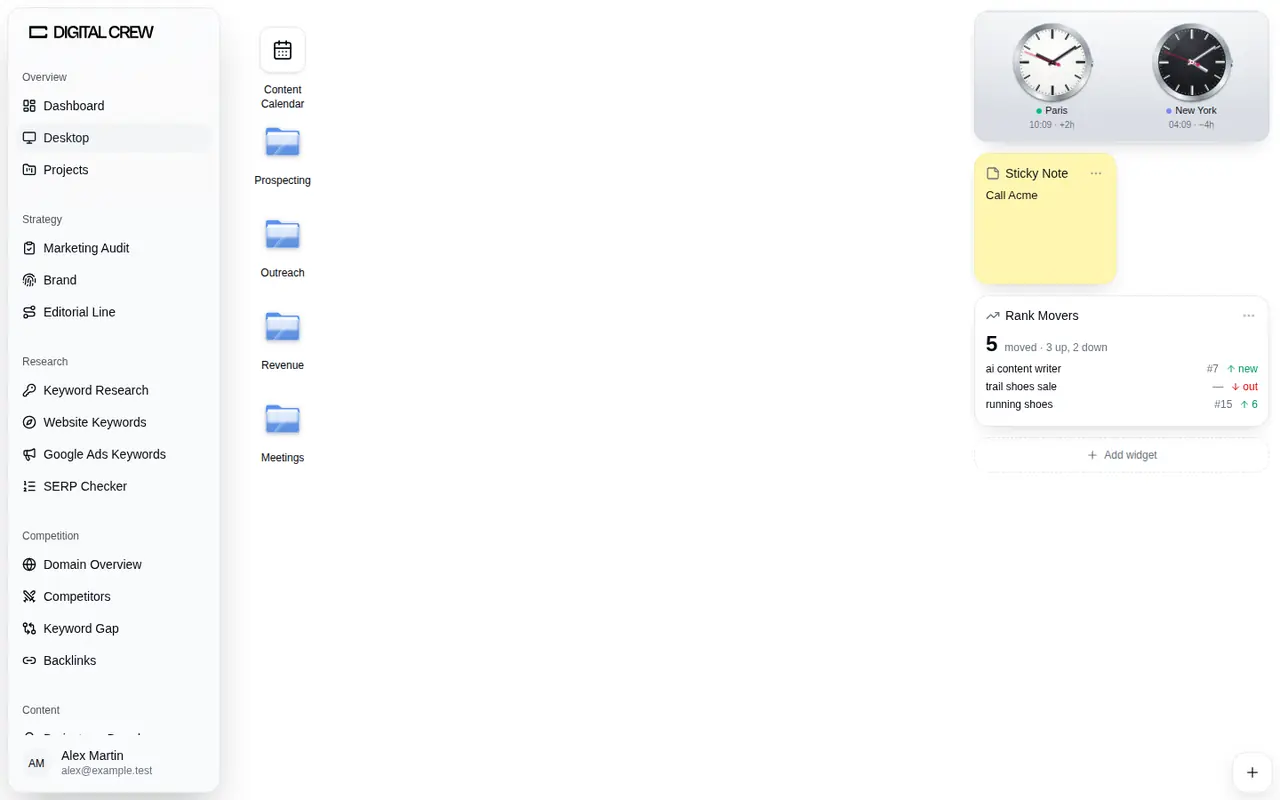
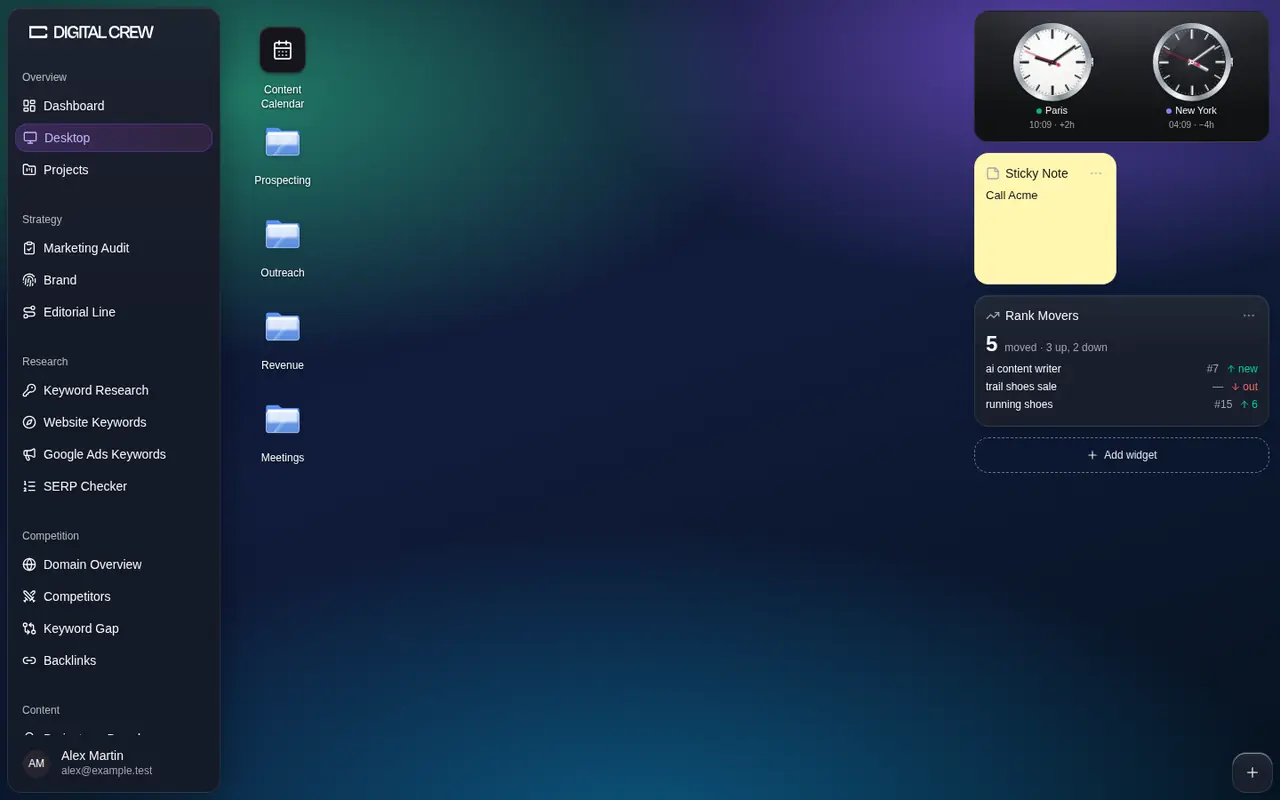
| OS | The kit | Its shell (host adapter) |
|---|---|---|
| Sales OS | The reference: max-agent: src/features/sales-os/ |
src/features/sales-os/ui/ |
| Crew OS | In place: digitalcrew-orchestrator: packages/desktop |
components/crew-shell/crew-os-shell.tsx |
| HR OS | Vendored: sophie-agent: vendor/desktop |
components/hr-os/host.tsx |
| Marketing OS | Vendored: kate-agent: src/vendor/desktop |
src/features/desktop/ui/marketing-os-provider.tsx |
| Research OS | Vendored: claire-agent: frontend/vendor/desktop |
frontend/components/desktop/ResearchOsShell.jsx |
- Vendored copies stay unchanged. Each records the kit commit it copied, and any fix waiting to go upstream, in
VENDORED.md. Fix the kit inpackages/desktop, then copy it again. - Each desktop is saved per member on the app's own server (
GET/PUT /api/desktop, revision-checked), in a table only the server role can read:sales_os_desktops,crew_os_desktops,hr_os_desktops,marketing_os_desktopsandresearch_os_desktops. Without its table, an app saves the desktop in the browser, and the + says so.
Anatomy#
| Part | What it is |
|---|---|
| Sidebar | The app's own sidebar, unchanged, acting as the system's bar. A WINDOWS group at its top lists the main and floating windows whenever more than the filling main window is open: click an entry to bring it forward, click the front one to minimize it, × to close it, the group's tile button to lay them side by side. Desktop (under OVERVIEW) closes the main window to the desktop |
| Main window | The routed page in the shell's card. Its 64 px shell bar carries the traffic lights: red closes it to the desktop, yellow sizes it, green floats it (see Windows) |
| Floating windows | Page windows, Finder, files, sticky notes and Desktop Settings, each under a 44 px glass title bar: moved by it, resized from any edge |
| Desktop | The member's folders, shortcuts, files and sticky notes on a grid over the wallpaper (see Desktop items & menus) |
| Widget bar | A 340 px column of widgets on the right: shown, on hover or hidden. Widgets can also sit on the desktop itself (see Widgets) |
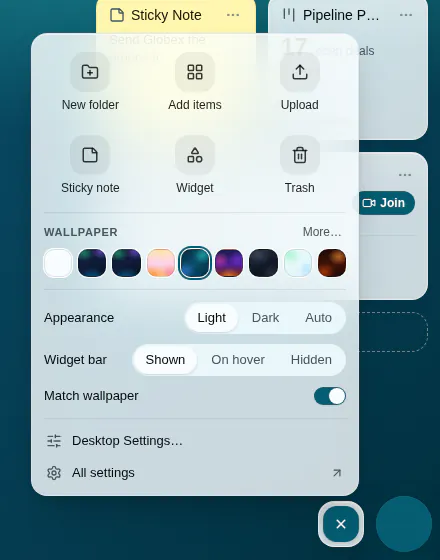
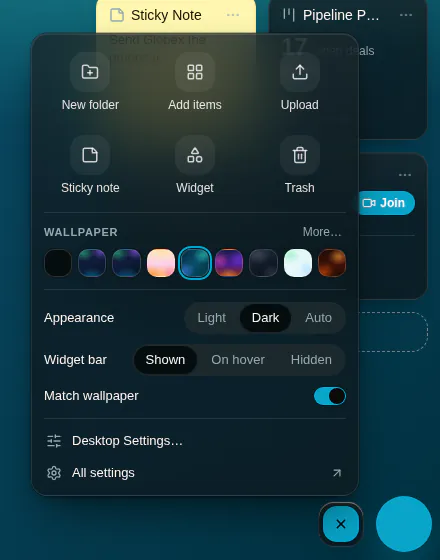
| Desktop controls | One + in the bottom-right corner, so the desktop stays clear. It opens the desktop's quick panel |
| Assistant slot | Beside the +. While the desktop shows, the app's agent docks here (Ask Max's bubble in Sales OS), and glides back to the shell bar when the main window fills the area. One the member dragged elsewhere stays where they left it |
Desktop controls#
| Part | What it holds |
|---|---|
| Add to the desktop | New folder, Add items (lists, campaigns, deals, documents, apps…), Upload, Sticky note, Widget (the gallery) and Trash, with its count. Each closes the panel and leaves focus on what it opened |
| Wallpaper | The pictures of Desktop Settings › Wallpaper, one click each; More… opens Desktop Settings for colours and your own picture |
| Quick settings | Appearance (Light, Dark, Auto), Widget bar (Shown, On hover, Hidden) and Match wallpaper. The panel stays open while they change |
| Links | Desktop Settings… (the window) and All settings (Settings › Desktop in the main window), plus Saved in this browser only when the server copy is unavailable |
- The panel is a non-modal glass popover that rises out of the +. Escape, a click elsewhere or the + again close it, and focus returns to the +.
- While desktop items are dragged from the desktop or a Finder window, the + turns into the Trash and takes the drop.
- An amber dot on the + (and a row in the panel) says the desktop is saved in this browser only.
Guidelines#
Use it for an app's home: where a member arranges their own work (folders of records, notes, the day's widgets) and keeps several pages open side by side.
What you provide: the app's sidebar and pages, its entries for the widget gallery and its agent for the assistant slot. The kit brings the rest: wallpaper and glass, windows, the desktop and Finder, menus, selection, Trash and undo, widgets, Desktop Settings and the keyboard.
Behaviour: each member's desktop is their own (wallpaper, widgets, arrangement, light or dark). Nothing on it is a copy: a shortcut opens the native page, which checks access again. A new desktop has no folders and is saved only after the first change. Below 768 px there are no windows: the shell is the classic full-screen page, and /desktop is a home-screen page with the folders, then the widgets.
Don't fork the kit per app (no window chrome, radii, springs or menus of your own), paint chrome with the OS accent, or rely on backdrop blur for contrast: performance mode, the default, turns every blur off.
In this section#
- Wallpaper & glass: the presets, colours and your own picture, Match wallpaper, label ink, the three glass families and performance mode.
- Windows: the traffic lights, Window size, moving and resizing, minimizing, page windows, tiling and phones.
- Desktop items & menus: folders, shortcuts, sticky notes and files, Finder, selection, renaming, Trash and undo, and the right-click menus.
- Widgets: the widget bar, widgets on the desktop, the gallery, sizes, Customize… and Reset, the built-in and per-app widgets.
- Desktop Settings & keyboard: the four tabs and every shortcut.
- Motion: the shared springs and variants, and how they step down.
Source#
- Spec:
max-agent: docs/reference/sales-os.mdanddocs/reference/workspace-appearance.md(Glass over the wallpaper). - Code: the kit,
digitalcrew-orchestrator: packages/desktop(@digitalcrew/desktop: pure rules insrc/core/, the desktop insrc/ui/, the host adapter insrc/host/, its README for installing it), extracted frommax-agent: src/features/sales-os/. - The pictures on these pages are screenshots of Max's desktop, in light and dark, and of the four other OSes above: the desktop is not in the
window.DigitalCrewbundle, so there are no live previews (see Known gaps).