


Desktop
Desktop items & menus
Folders, shortcuts, sticky notes and files on the desktop and in Finder: selecting, renaming, the Trash and undo, and right-click menus that work from the keyboard.
The desktop and every Finder window hold the same four kinds of item, select and move them the same way, and share one right-click menu system.
Items#
| Item | What it is | Notes |
|---|---|---|
| Folder | Holds shortcuts, files, sticky notes and other folders, up to 8 levels deep | Ten colours, an optional glyph (Folder icon) or picture; drawn as Frost (the default), Relief or Line |
| Shortcut | A link to a page or a record: app, list, campaign, deal, document, organization, person, booking page, workflow, link, file or shared folder | Nothing is copied: opening it loads the native page, which checks access again. Its label is the member's own and does not follow a later rename of the record |
| Sticky note | A note with its own text (up to 2,000 characters), paper colour and type size | Its icon is a square of its colour with its first words. It opens in a note window with two sides, its text and its whiteboard |
| File | A PDF, recording, picture, video, Office, Markdown, HTML, CSV or text file dropped from the computer | Private to the member who dropped it; opens in a file window of its own |
- Folder colours: blue, indigo, purple, pink, red, orange, yellow, green, teal and graphite. Paper colours: yellow, pink, blue, green, purple, orange and graphite.
- A name is up to 80 characters.
- Make items from the + panel, the desktop's right-click menu or Finder's Add menu, or by dragging: a sidebar link onto the desktop makes a shortcut, a link out of a page window (a list's name, a person's) saves that record, and files from the computer upload.
- Icons sit on a grid that fills columns top to bottom, then left to right. Icon size sets the cell: Small 88 × 92 px, Medium 100 × 104 px (the default), Large 112 × 116 px. Clean up and Clean up by name tidy it, and icons step aside for widgets placed on the desktop.
- A new desktop is empty and says so: "Make this desktop yours", with New folder, Add items and Upload files.
Finder#
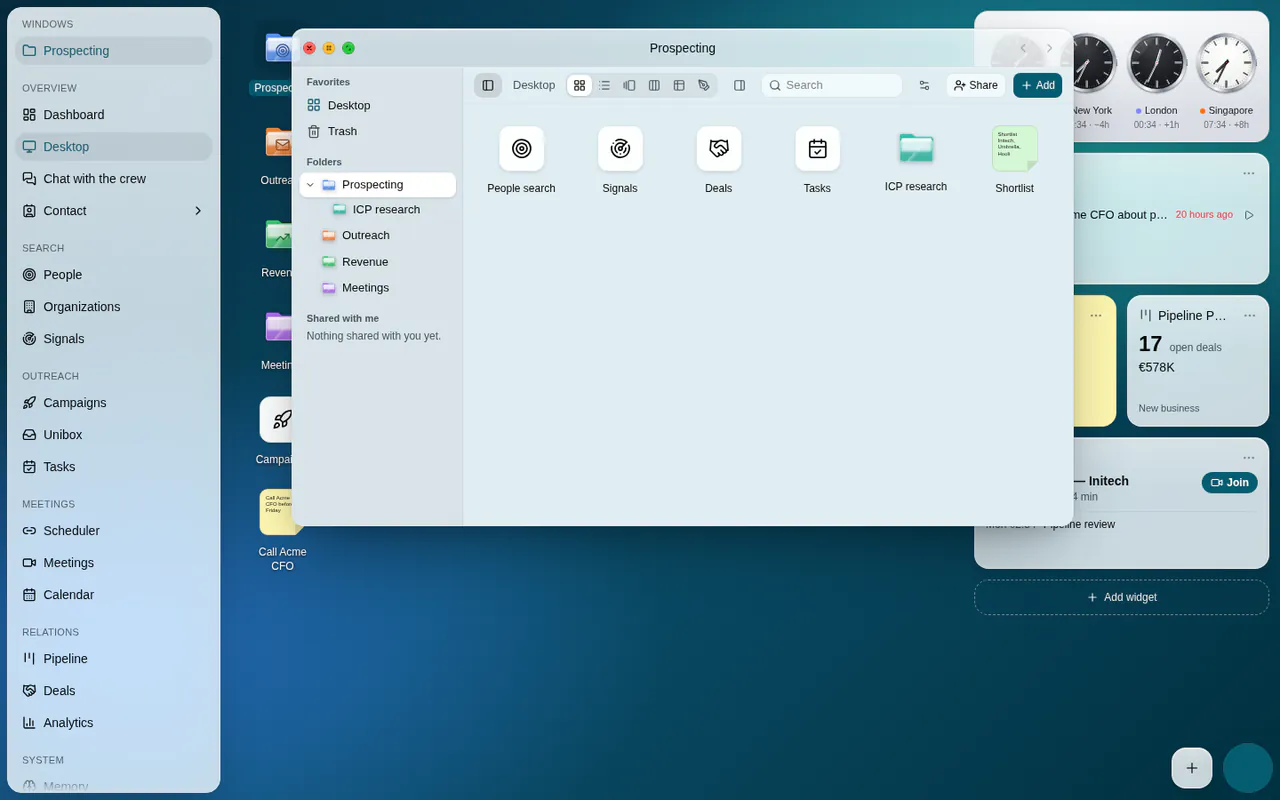
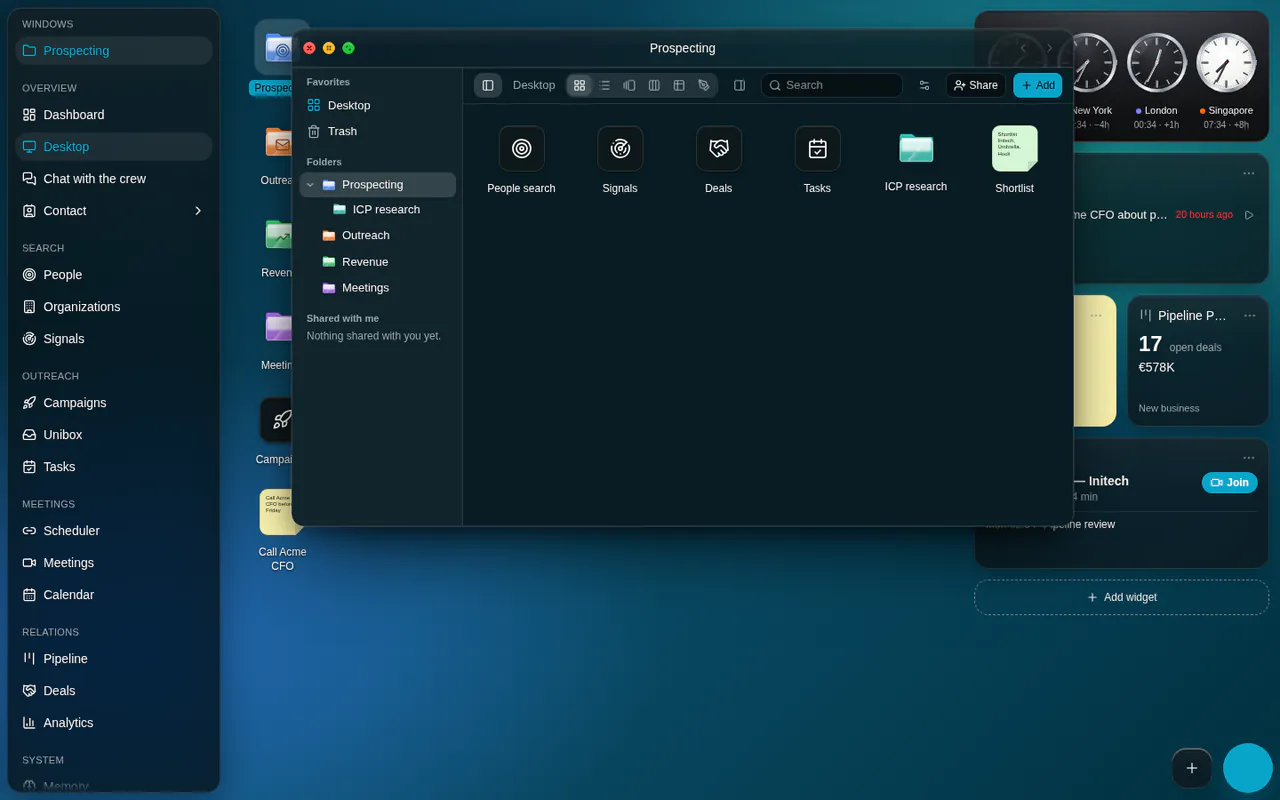
A folder opens in a Finder window: a sidebar tree (Favorites: Desktop and Trash; Folders; Shared with me), the path with Back and Forward, a search across everything inside, six views and a Preview pane.
| View | Shows |
|---|---|
| Icons | A grid, as on the desktop |
| List | Rows with disclosure triangles to look inside sub-folders |
| Gallery | The selected item large over a filmstrip of the rest; ← and → move along it |
| Kanban | The folder's own columns (Backlog, Active, Waiting and Done by default, up to 12); cards dragged between them keep their order |
| Data | A sortable table (name, kind, stage, note, added) with kind filters; notes edit in place |
| Whiteboard | The folder as a whiteboard: its items as cards among whatever is drawn around them |
- The view is remembered per folder.
- Preview opens a 300 px column on the right of every view but Gallery. It needs 320 px left for the view, so a narrow window keeps it closed.
- The Sidebar switch at the start of the toolbar slides the tree shut so the view takes the whole window; below 640 px the tree folds into a strip of places.
- ⌘-double-click / Ctrl-double-click a folder, or Open in new window, opens it in a second Finder window.
Selecting#
Every surface (the desktop and each Finder window) keeps its own selection.
| Gesture | Does |
|---|---|
| Click | Selects one item |
| ⌘-click / Ctrl-click | Adds or removes one |
| Shift-click | Selects the run from the last plain click, in the order shown |
| Drag across empty space | Draws a band that selects what it touches; hold Shift or ⌘ to add |
| ⌘A / Ctrl A | Selects everything shown |
| Arrow keys | Move to the next item as they lie on screen; Shift extends the selection |
| Escape | Clears the selection |
- Dragging any selected item drags the whole selection: onto a folder, a Finder window, a kanban column, the Trash or another place on the desktop, where the icons keep their arrangement around the one under the pointer. A folder's contents travel with it.
- With several selected, the menu offers Open N items (each in its own window), New folder with N items, Move to and Move N items to Trash. Enter opens them all.
Renaming#
- F2 (also after a band that caught one item), the menu's Rename, or a slow click on the name of the only selected item, as in Finder: 550 ms after the click, the name becomes a field. A double-click opens instead, and any press or key before the moment is up cancels it.
- Enter keeps the new name; Escape or an empty name cancels.
- An item shown in two places at once (on the desktop and in a Finder window) renames in the first. Folders shown only in Finder's sidebar or path rename through a small dialog.
Trash and undo#
- Move to Trash (Delete, or ⌘⌫ / Ctrl Backspace; plain ⌫ does nothing, as in Finder) hides an item and everything inside it. Several items go with one Undo.
- Put Back restores it. If its folder is still in the Trash, it comes back to the desktop.
- Empty Trash and Delete Immediately remove only shortcuts, folders and the member's own files, never workspace records.
- ⌘Z / Ctrl Z undoes the last 30 desktop edits in this tab, a reset included, while the desktop shows and the main window is not in front.
- Deleting files (or notes' whiteboards) for good cannot be undone: an Empty Trash or Delete Immediately that includes them is left out of the history, and undoing an earlier edit never brings them back. Text typed into a sticky note is kept the same way.
- One Customize… session, or one drag across the colour picker, is one undo step.
- A shared folder has no Trash: removing an item removes it for everyone, with an Undo in the toast.
“N more”#
When the desktop holds more icons than it has cells (about thirty on a laptop screen with the widget bar shown), its last cell holds an N more tile instead of a pile only the top of which could be clicked. The tile opens Finder on the Desktop, which lists everything.
Right-click menus#
One menu at a time, at the pointer, on glassMenu glass. It springs open from the pointer, its entries settling in a quick stagger, and fades out on close.
| Part | Look |
|---|---|
| Panel | 208–288 px wide, radius-lg corners, 4 px padding; kept 6 px inside the browser window and placed by its laid-out size, so it never runs off the screen |
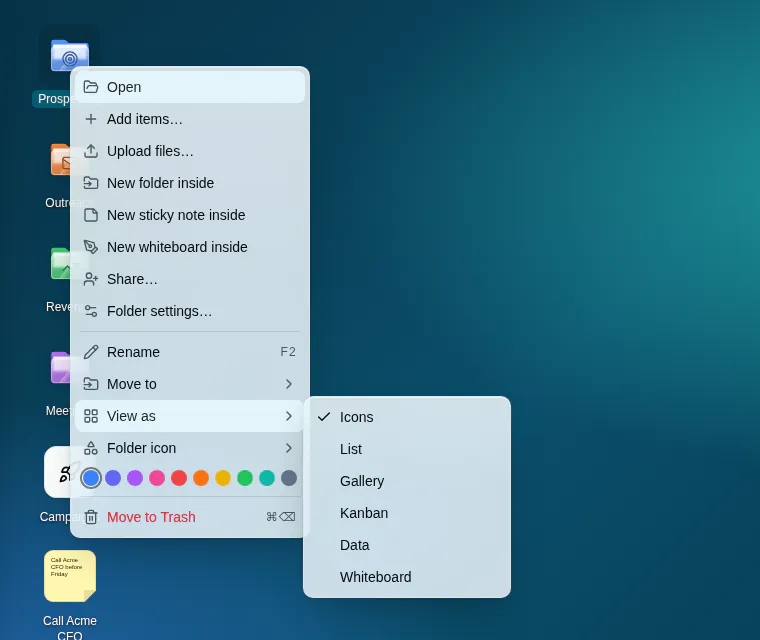
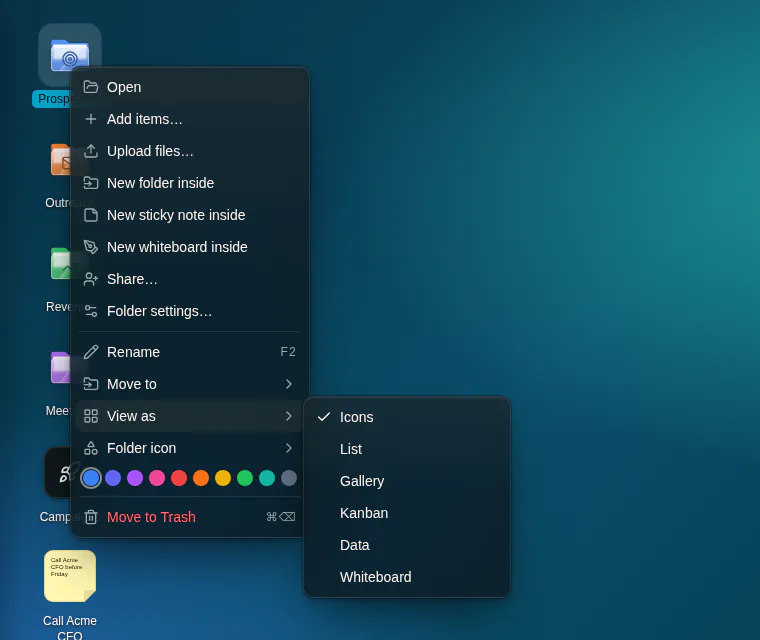
| Entry | A 16 px icon (a tick when checked), the label, then a shortcut hint (F2, ⌘⌫, ⌥N, ⌘A, ⌘Z) or ▸ for a submenu |
| Separator | A hairline at 10% ink, between groups |
| Label | A small muted heading |
| Swatches | A row of 16 px colour dots (Folder colour), the chosen one ringed |
| Destructive | Move to Trash, in destructive, always last |
- The desktop: New folder (⌥N), Add items…, Upload files…, New sticky note, New whiteboard, Add widget… · Change wallpaper…, Clean up, Clean up by name, Hide/Show widget bar, Show widget bar on hover, Select all (⌘A), Tile windows · Undo (⌘Z), Open Trash.
- A folder: Open, Add items…, Upload files…, New folder inside, New sticky note inside, New whiteboard inside, Share…, Folder settings… · Rename (F2), Move to ▸, View as ▸, Folder icon ▸, Folder colour · Move to Trash (⌘⌫).
- A shortcut: Open, Open in new window, Open in main window, Copy link · Rename (F2), Move to ▸, Add note… · Move to Trash (⌘⌫). A record's shortcut adds the app's Smart actions between Copy link and Rename (in Sales OS: Send email…, Create task…, Follow up, Debrief, Explain). A link to an outside page opens in a new tab, so it has one Open instead of three.
- Several items: Open N items, New folder with N items, Move to ▸, Move N items to Trash.
A submenu opens beside its row, on the right, or on the left when there is no room. The pointer opens it without moving focus; the keyboard moves focus into it.
| Keys | Does |
|---|---|
| Shift F10, or the menu key | Opens the focused icon's menu |
| ↑ ↓ | Move between entries, wrapping round |
| Home, End | The first, the last entry |
| ← → on a row of swatches | Move along the colours; the row is one stop |
| →, Enter or Space on an entry with ▸ | Opens its submenu, focus in it |
| ← or Escape in a submenu | Closes just the submenu, back to its row |
| Enter or Space | Chooses the entry |
| Escape | Closes the menu; focus returns to where it was |
- When the chosen action takes away the icon focus would return to (Move to Trash, Move to), focus goes to its desktop or Finder surface, so the arrows keep working.
- A press outside the menu, a resize or leaving the browser window closes it.
- On touch screens, a long press opens it. A right-click in a text field (a sticky note's) keeps the browser's own menu.
Guidelines#
Use a folder per account, territory or deal, shortcuts for the records and pages inside, and sticky notes for what has no page of its own.
Behaviour: items are links, never copies, so permissions stay with the pages. Every action has a menu entry, and every menu works from the keyboard.
Don't add menu entries that only the pointer can reach, put a destructive entry anywhere but last, or make Trash delete workspace records: it only removes the member's own items.