


Desktop
Desktop Settings & keyboard
Desktop Settings' four tabs and Settings › Desktop, which edit the same preferences, and every key the desktop answers to.
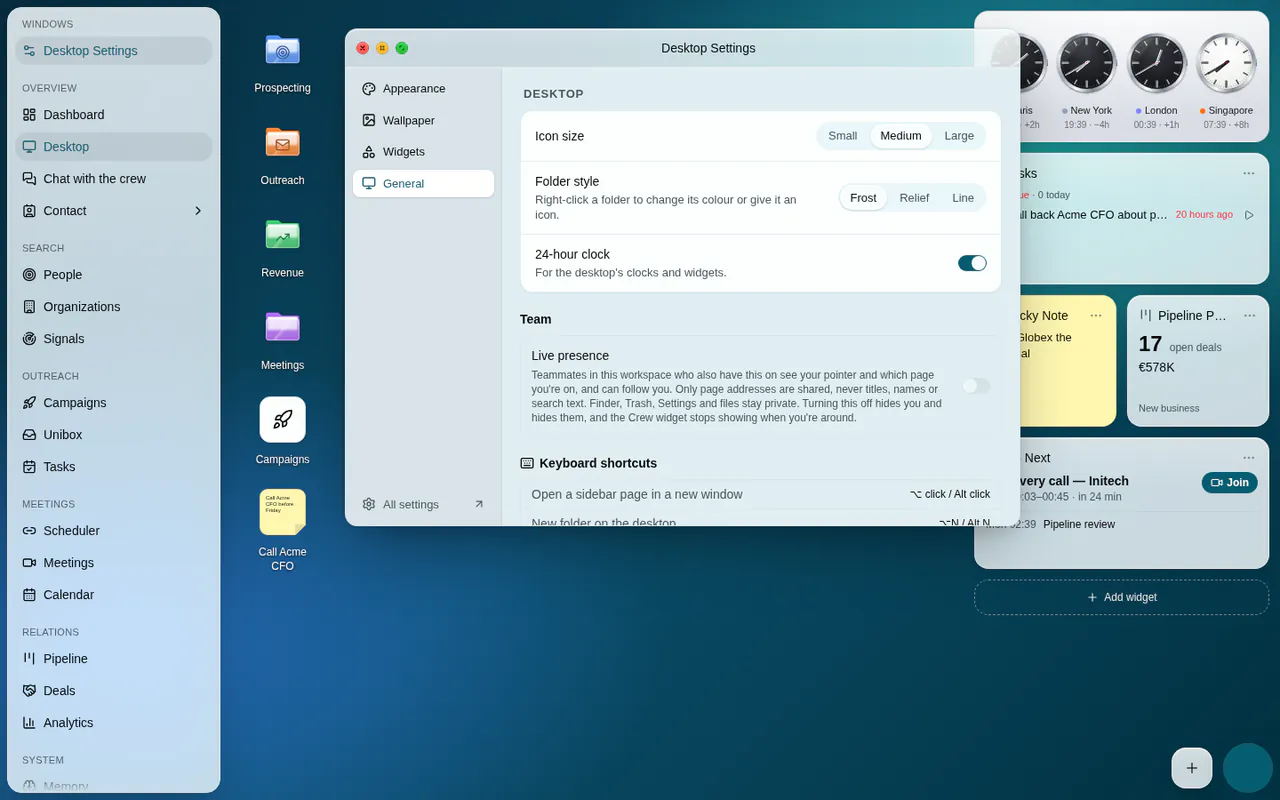
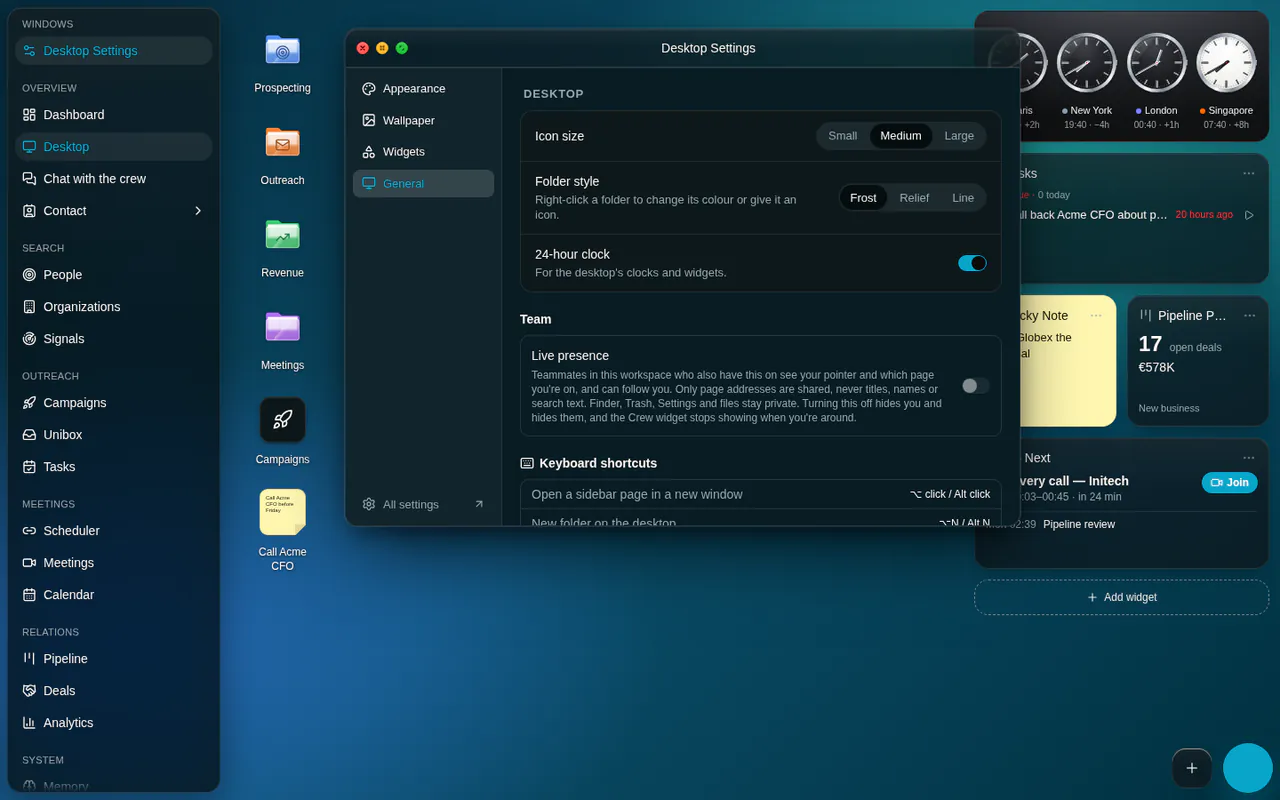
Desktop Settings is a window: Desktop Settings… in the + panel, or Change wallpaper… in the desktop's menu, which opens it on Wallpaper. It changes only the member's own desktop, never the workspace or anyone else's. All settings, under its tabs, opens Settings › Desktop (/settings/desktop) in the main window: the same sections beside every other Settings page, so both places edit one setting.
Tabs#
| Tab | Holds |
|---|---|
| Appearance | Theme (Light, Dark, Auto), Colors (Match wallpaper, the accent, Tinted surfaces and a preview) and Effects (Visual effects: Performance or Full effects; the splash cursor): the same groups as Settings › Appearance, with a link to the rest of it (Unibox theme, workspace logo, brand colour, sidebar menu) |
| Wallpaper | Match wallpaper, then Pictures, Colours and Your own picture (see Wallpaper & glass) |
| Widgets | Widget bar (Shown, On hover, Hidden), then every widget, in the bar or on the desktop, to customize, resize or remove, and Add widget |
| General | Icon size (Small, Medium, Large), Folder style (Frost, Relief, Line), 24-hour clock, Live presence, Keyboard shortcuts, Files (the space dropped files use, and clearing out files nothing points at any more) and Storage (where the desktop is saved, and Reset desktop…) |
- The tabs sit in a sidebar of the window's own glass, with a highlight that slides between them; All settings is at their foot.
- Changes save as they are made. Those to the desktop (wallpaper, widgets, icons, folders) save with it and undo with ⌘Z; the Appearance groups are the member's app preferences, as in Settings › Appearance.
- Reset desktop… asks first: "Folders, shortcuts, widgets, the Dock and the wallpaper go back to the starter arrangement. You can undo this with ⌘Z."
- Storage says where the desktop lives: "Your desktop is saved to your account in this workspace and follows you to any browser.", or, before the workspace's storage is set up, in this browser only. Open windows are always remembered in this browser.
- Live presence is the exception: it is stored on the server, not in the desktop, so ⌘Z and Reset desktop never turn it back on.
Captions under the rows:
| Row | Caption |
|---|---|
| Widget bar | Shown: "Beside your icons, on the right of the desktop." On hover: "Out of the way until the pointer rests on the desktop's right edge, or you use the handle there." Hidden: "Hidden for a clean desktop. Widgets keep their settings, and those you moved onto the desktop stay." |
| Folder style | "Right-click a folder to change its colour or give it an icon." |
| 24-hour clock | "For the desktop's clocks and widgets." |
| Tinted surfaces | "Windows, menus and the sidebar take a faint wash of the theme color." |
Keyboard#
On a Mac, ⌥ is Option and ⌘ is Command; elsewhere they are Alt and Ctrl.
| Keys | Does |
|---|---|
| ⌥W / Alt W | Close the front window (the main one goes to the desktop); also while focus is in a page window's page |
| ⌥M / Alt M | Minimize the front window; likewise |
| ⌥G / Alt G | Tile the open windows side by side; likewise |
| ⌥-click / Alt-click a sidebar link | Open the page in a new window (a group's entries and the small sidebar's flyouts included) |
| ⌥N / Alt N | New folder, in the focused Finder window, else on the desktop, while the desktop shows |
| ⌘Z / Ctrl Z | Undo a desktop edit, while the desktop shows and the main window is not in front |
| Enter | Open the selected icons |
| F2, or a slow click on a selected name | Rename the selected icon |
| Delete, or ⌘⌫ / Ctrl Backspace | Move the selected icons to the Trash (plain ⌫ does nothing, as in Finder) |
| Arrow keys | Move to the next icon as they lie on screen; Shift extends the selection |
| ⌘-click / Ctrl-click, Shift-click | Add one item to the selection / select a run |
| Drag across empty space | Select the icons it touches |
| ⌘A / Ctrl A, Escape | Select everything shown / clear the selection |
| ⌘-double-click / Ctrl-double-click a folder in Finder | Open it in a new Finder window |
| ← → in Finder's Gallery | Move along the filmstrip |
| Shift F10, or the menu key | The focused icon's right-click menu |
| In a menu: ↑ ↓, Home, End | Move between entries; a row of colour swatches is one stop, ← → along it |
| In a menu: →, Enter or Space on an entry with ▸ | Open its submenu, focus in it; ← or Escape closes just the submenu |
| Escape | Close the menu, the + panel or the widget drawer |
| / | Cursor chat beside the pointer, while live presence is connected (Enter sends, Escape closes) |
- Keys typed into a field, or into a whiteboard, are never taken: the board has Excalidraw's own shortcuts.
- Browsers keep ⌘W, ⌘M, ⇧⌘N and ⌘, for themselves, so those Mac shortcuts are not used; ⌥T is the toast region's own shortcut, so tiling uses ⌥G.
- Desktop Settings › General lists the shortcuts too, under Keyboard shortcuts.
Guidelines#
Use Desktop Settings for what belongs to one member's desktop; workspace-wide settings stay in Settings.
Behaviour: Desktop Settings, Settings › Desktop and the + panel are three doors to the same preferences: a change in one shows in the others at once.
Don't add a desktop preference to only one of them, take a key the browser keeps for itself, or take keys from a text field.